
How to download embedded videos with F12 Tools in your browser

I got an email this week asking how to download some of my Azure Friday video podcast videos from http://friday.azure.com as well as some of the Getting Started Videos from Azure.com.

NOTE: Respect copyright and consider what you’re doing and WHY before you use this technique to download videos that may have been embedded for a reason.

I told them to download the videos with F12 tools, and they weren't clear how. I'll use an Azure Friday video for the example. Do be aware that there are a ton of ways to embed video on the web and this doesn't get around ones that REALLY don't want to be downloaded. This won't help you with Netflix, Hulu, etc.

First, I'll visit the site with the video I want in my browser. I'll use Chrome but this also works in Edge or Firefox with slightly different menus.

Then press F12 to bring up the Developer Tools pane and click Network. In Edge, click Content Type, then Media.
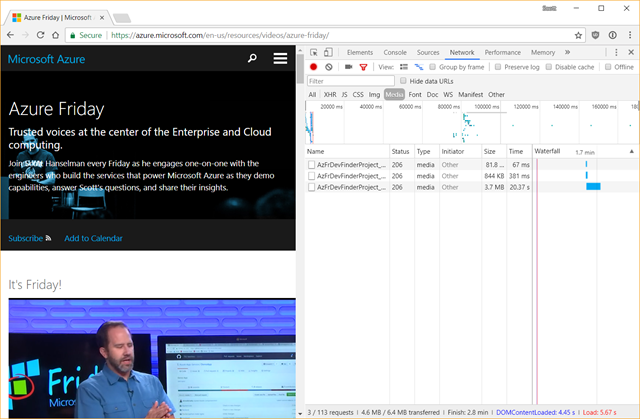
Download embedded videos with F12

Click the "clear" button to set up your workspace. That's the International No button there in the Network pane. Now, press Play and get ready.

Look in the Media list for something like ".mp4" or something that looks like the video you want. It'll likely have an HTTP Response in the 20x range.
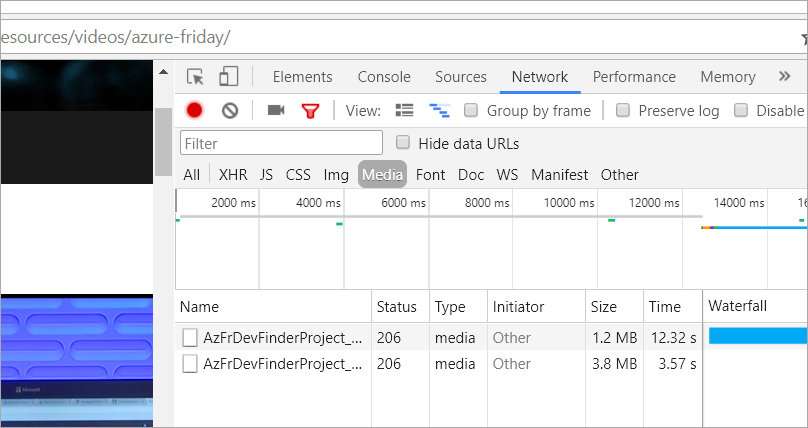
Download 200

In Chrome, right click on the URL and select Copy as CURL. If you're on Windows pick cmd.exe and bash if you're on Linux/Mac.
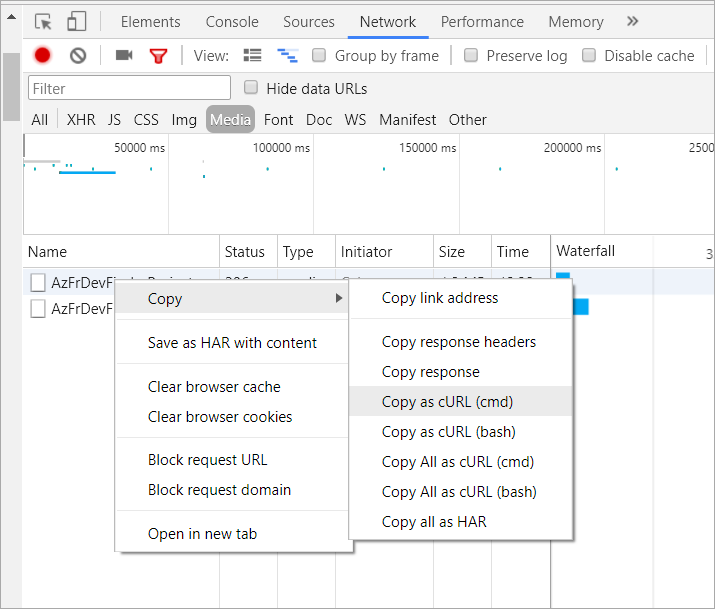
Downloading with CURL

You'll get a crazy long command put into your clipboard. It's not all needed but it's a very convenient feature the browser provides, so it's worth using.

Get Curl: If you don't have the "curl" command you'll want to download "curl.exe" from here https://curl.haxx.se/dlwiz/ and, if you like, put it in your PATH. If you have Windows, get the free bundled curl version with installer here.

Open a terminal/command prompt - run cmd.exe on Windows - and paste in the command.
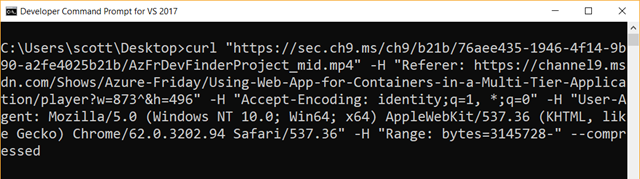
image

BEFORE you press enter, make sure you add "-o youroutputfilename.mp4." Also, if you can an error about security and certificates, you may need to add "--insecure."
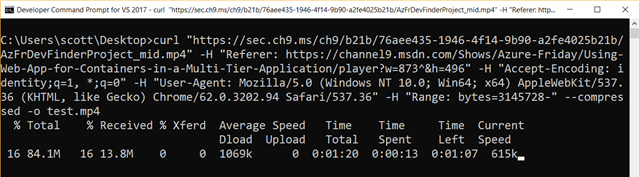
Downloading a streaming video file with CURL

In the screenshot above I'm saving the file as "test.mp4" on my desktop.

There are several ways to download embedded videos, including a number of online utilities that come and go, but this technique has been very reliable for me.


Sponsor: Scale your Python for big data & big science with Intel® Distribution for Python. Near-native code speed. Use with NumPy, SciPy & scikit-learn. Get it Today


© 2017 Scott Hanselman. All rights reserved.


from Scott Hanselman's Blog http://feeds.hanselman.com/~/501778526/0/scotthanselman~How-to-download-embedded-videos-with-F-Tools-in-your-browser.aspx

Comments

Popular posts from this blog

Rail Fence Cipher Program in C and C++[Encryption & Decryption]

Here you will get rail fence cipher program in C and C++ for encryption and decryption. It is a kind of transposition cipher which is also known as zigzag cipher. Below is an example. Here Key = 3. For encryption we write the message diagonally in zigzag form in a matrix having total rows = key and total columns = message length. Then read the matrix row wise horizontally to get encrypted message. Rail Fence Cipher Program in C #include<stdio.h> #include<string.h> void encryptMsg(char msg[], int key){ int msgLen = strlen(msg), i, j, k = -1, row = 0, col = 0; char railMatrix[key][msgLen]; for(i = 0; i < key; ++i) for(j = 0; j < msgLen; ++j) railMatrix[i][j] = '\n'; for(i = 0; i < msgLen; ++i){ railMatrix[row][col++] = msg[i]; if(row == 0 || row == key-1) k= k * (-1); row = row + k; } printf("\nEncrypted Message: "); for(i = 0; i < key; ++i) f...

Data Encryption Standard (DES) Algorithm

Data Encryption Standard is a symmetric-key algorithm for the encrypting the data. It comes under block cipher algorithm which follows Feistel structure. Here is the block diagram of Data Encryption Standard. Fig1: DES Algorithm Block Diagram [Image Source: Cryptography and Network Security Principles and Practices 4 th Ed by William Stallings] Explanation for above diagram: Each character of plain text converted into binary format. Every time we take 64 bits from that and give as input to DES algorithm, then it processed through 16 rounds and then converted to cipher text. Initial Permutation: 64 bit plain text goes under initial permutation and then given to round 1. Since initial permutation step receiving 64 bits, it contains an 1×64 matrix which contains numbers from 1 to 64 but in shuffled order. After that, we arrange our original 64 bit text in the order mentioned in that matrix. [You can see the matrix in below code] After initial permutation, 64 bit text passed throug...

Experimental: Reducing the size of .NET Core applications with Mono's Linker

The .NET team has built a linker to reduce the size of .NET Core applications. It is built on top of the excellent and battle-tested mono linker . The Xamarin tools also use this linker so it makes sense to try it out and perhaps use it everywhere! "In trivial cases, the linker can reduce the size of applications by 50%. The size wins may be more favorable or more moderate for larger applications. The linker removes code in your application and dependent libraries that are not reached by any code paths. It is effectively an application-specific dead code analysis ." - Using the .NET IL Linker I recently updated a 15 year old .NET 1.1 application to cross-platform .NET Core 2.0 so I thought I'd try this experimental linker on it and see the results. The linker is a tool one can use to only ship the minimal possible IL code and metadata that a set of programs might require to run as opposed to the full libraries. It is used by the various Xamarin products to extract...